本文最后更新于:2026年3月12日 上午
Cordova加载远程网页实现动态更新
背景
在传统的 Cordova 开发中,通常将 HTML、CSS、JavaScript 等静态资源打包到应用安装包中。每次更新都需要重新打包、提交审核、等待上架,周期长且无法快速响应线上问题。
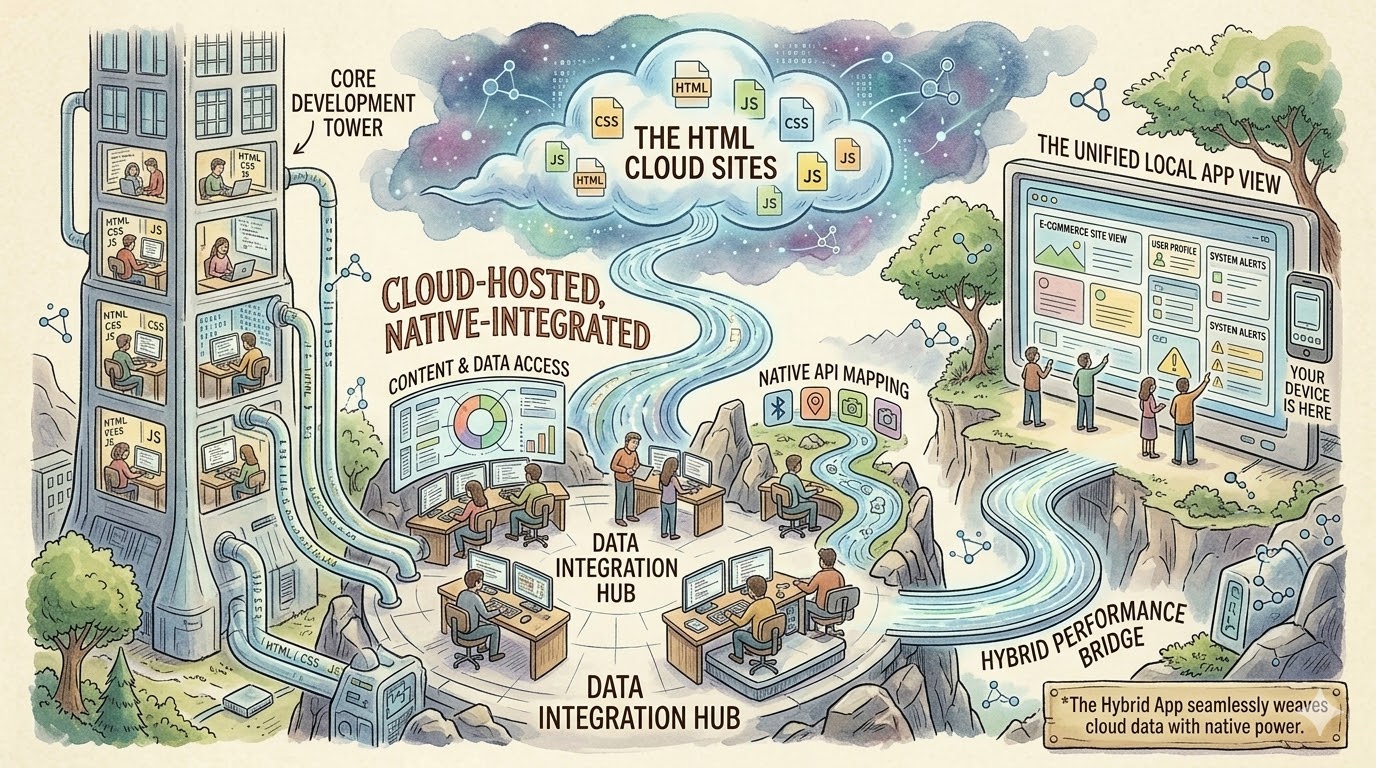
本文探讨一种替代方案:让 Cordova 应用加载服务器上的远程网页,从而实现动态更新,绕过应用商店的审核流程。
方案对比
CodePush vs 远程网页
| 方案 |
优势 |
劣势 |
| CodePush |
官方支持,增量更新,灰度发布 |
依赖第三方服务,有商业化风险 |
| 远程网页 |
完全自主可控,更新即时生效 |
需要自行处理缓存、降级等问题 |
本地资源 vs 远程资源
| 对比项 |
本地资源 |
远程资源 |
| 加载速度 |
快,无网络依赖 |
依赖网络,首屏较慢 |
| 更新方式 |
需重新上架 |
实时更新 |
| 审核风险 |
低 |
高(iOS严格) |
| 离线支持 |
天然支持 |
需要额外处理 |
实现方案
方案一:主 WebView 直接加载远程地址
最简单的方式是在 config.xml 中直接配置远程首页地址。
配置步骤
1. 修改 config.xml
1
2
3
4
5
6
7
8
9
10
11
12
| <widget id="com.example.app" version="1.0.0">
<content src="https://your-domain.com/index.html" />
<allow-navigation href="https://your-domain.com/*" />
<allow-intent href="https://*/*" />
<meta http-equiv="Content-Security-Policy"
content="default-src 'self' https://your-domain.com; style-src 'self' 'unsafe-inline'; script-src 'self' 'unsafe-inline' 'unsafe-eval'" />
</widget>
|
2. 安装白名单插件
1
| cordova plugin add cordova-plugin-whitelist --save
|
3. 配置网络访问权限
在 Android 的 AndroidManifest.xml 中:
1
2
3
4
| <uses-permission android:name="android.permission.INTERNET" />
<application android:usesCleartextTraffic="true">
</application>
|
优点
- 实现简单,无需额外代码
- 可以直接调用 Cordova 插件的原生 API
- 远程网页与本地应用环境完全一致
缺点
- 首次加载依赖网络,无网络时无法使用
- iOS 审核可能不通过(纯远程加载容易被拒)
方案二:本地首页 + 远程内容(推荐)
为了通过审核并提升用户体验,采用 本地首页 + 远程内容 的混合方案。
代码实现
本地首页 index.html
1
2
3
4
5
6
7
8
9
10
11
12
13
14
15
16
17
18
19
20
21
22
23
24
25
26
27
28
29
30
31
32
33
34
35
36
37
38
39
40
41
42
43
44
45
46
47
48
| <!DOCTYPE html>
<html>
<head>
<meta charset="UTF-8">
<meta name="viewport" content="width=device-width, initial-scale=1.0">
<title>Loading...</title>
<style>
body {
margin: 0;
padding: 0;
display: flex;
justify-content: center;
align-items: center;
height: 100vh;
background: #f5f5f5;
}
.loader {
text-align: center;
}
</style>
</head>
<body>
<div class="loader">
<h2>加载中...</h2>
<p id="status">正在检查网络连接</p>
</div>
<script type="text/javascript" src="cordova.js"></script>
<script>
document.addEventListener('deviceready', function() {
checkAndLoadRemote();
}, false);
function checkAndLoadRemote() {
if (navigator.connection.type === 'none') {
document.getElementById('status').textContent = '网络连接失败,请检查网络';
setTimeout(checkAndLoadRemote, 3000);
return;
}
const remoteUrl = 'https://your-domain.com/app/index.html';
window.location.href = remoteUrl;
}
</script>
</body>
</html>
|
方案三:使用 InAppBrowser 加载远程页面
如果需要在新的 WebView 窗口中加载远程内容,可以使用 cordova-plugin-inappbrowser。
基本使用
1
| cordova plugin add cordova-plugin-inappbrowser --save
|
1
2
3
4
5
6
7
8
| document.addEventListener('deviceready', function() {
const ref = cordova.InAppBrowser.open(
'https://your-domain.com/app/index.html',
'_blank',
'location=no,toolbar=no'
);
}, false);
|
调用原生 API 的问题
默认情况下,InAppBrowser 无法调用 Cordova 插件,因为它是一个独立的 WebView 实例,没有注入 cordova.js。
解决方案:使用 _self 参数
1
2
|
cordova.InAppBrowser.open('https://your-domain.com', '_self');
|
或者:改造 InAppBrowser 注入 cordova.js
这需要修改插件源码,将 cordova.js 和插件脚本注入到 InAppBrowser 中,较为复杂,不推荐。
iOS 审核注意事项
审核风险
Apple App Store Review Guidelines 明确规定:
2.5.2 Apps should be self-contained in their bundles, and may not read or write data outside the designated container area.
纯远程加载的应用可能被认为是”马甲包”或”热更新规避审核”,存在被拒风险。
应对策略
1. 保留核心功能在本地
- 至少将首页、启动页、错误页等核心页面放在本地
- 远程加载的内容作为”内容更新”而非”功能更新”
2. 提供离线降级方案
1
2
3
4
5
6
7
8
9
10
11
12
13
14
15
16
| function loadRemoteOrFallback() {
const remoteUrl = 'https://your-domain.com/app/index.html';
const localFallback = 'fallback.html';
fetch(remoteUrl, { method: 'HEAD', timeout: 5000 })
.then(response => {
if (response.ok) {
window.location.href = remoteUrl;
} else {
window.location.href = localFallback;
}
})
.catch(() => {
window.location.href = localFallback;
});
}
|
3. 审核时使用本地资源
通过配置开关,在审核版本中使用本地资源,上线后切换到远程加载:
1
2
3
4
| const isReviewVersion = false;
const contentUrl = isReviewVersion
? 'index.html'
: 'https://your-domain.com/app/index.html';
|
适用场景
- 适合:内容型应用(新闻、资讯、社区)
- 适合:需要频繁更新 UI 的应用
- 不适合:对性能要求极高的应用
- 不适合:需要大量离线功能的应用
注意事项
- iOS 审核:务必保留本地核心功能,避免纯远程加载
- Android 审核:相对宽松,但也要遵守应用商店规则
- 安全性:使用 HTTPS,防止中间人攻击
- 兼容性:测试不同网络环境下的加载情况
参考资料: